
SimsCrate
How to Install Sims 4 Mods
Installing mods in The Sims 4 is not difficult, but it is important to place the files in the correct folder and check the right game settings. If you are new to mods, this guide will help you understand where to put downloaded files, when to unzip archives, and what to do if a mod does not appear in the game.
Most Sims 4 mods come as .package or .ts4script files. Sometimes they are packed inside a .zip, .rar, or .7z archive. Before installing anything, always read the notes from the creator if they are included with the download.
Where Is the Sims 4 Mods Folder?
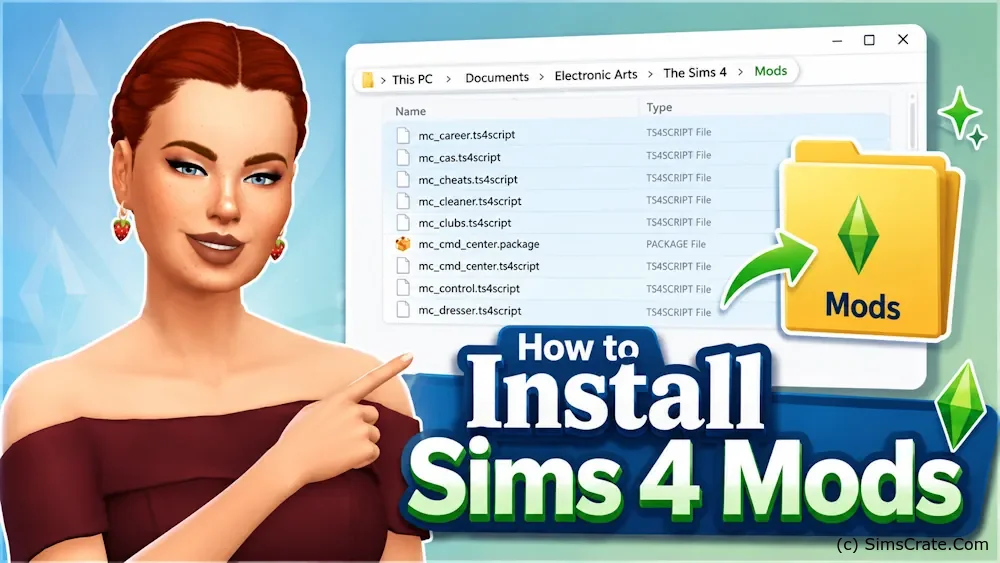
The main Mods folder is usually located here:
Documents/Electronic Arts/The Sims 4/Mods
This is the folder where most custom content and mods should be placed. If you do not see the Mods folder, start The Sims 4 once, close the game, and check again. The game normally creates this folder automatically.
Step 1 - Download the Mod
First, download the mod file from the page you are using. Make sure the file is meant for The Sims 4 and not for another game. Also check whether the mod requires a specific game pack, expansion pack, or newer game version.
If the download comes as an archive, such as .zip, .rar, or .7z, you may need to extract it before placing the files into the Mods folder.
Step 2 - Extract the Archive If Needed
If the downloaded file is a .package file, you can usually place it directly into the Mods folder. If it is a .zip, .rar, or .7z archive, open it first and check what is inside.
Most of the time, you need to extract files like these:
- .package
- .ts4script
- sometimes a folder with required files
Do not place the entire archive into the Mods folder unless the creator clearly says to do so.
Step 3 - Move Files to the Mods Folder
Move the extracted .package and .ts4script files into:
Documents/Electronic Arts/The Sims 4/Mods
You can organize your Mods folder with subfolders, for example:
Mods/HairMods/ClothingMods/Gameplay ModsMods/Furniture
This makes it easier to remove or update files later. However, script mods should usually not be placed too deep inside folders. One folder deep is normally safest unless the creator says otherwise.
Step 4 - Enable Mods in Game Settings
Open The Sims 4 and go to:
Game Options - Other
Then enable these options:
- Enable Custom Content and Mods
- Script Mods Allowed, if the mod uses .ts4script files
After changing these settings, restart the game. Mods often will not load correctly until the game has been restarted.
Step 5 - Check If the Mod Works
After restarting the game, check if the mod appears where it should. CAS items should appear in Create a Sim. Furniture and build items should appear in Build/Buy mode. Gameplay mods may add new menus, interactions, traits, moodlets, or settings.
If the mod does not appear, double-check the file location, the file type, and whether you extracted the archive correctly.
Common Installation Mistakes
- Putting .zip or .rar archives directly into the Mods folder.
- Forgetting to enable mods in the game settings.
- Installing an outdated mod after a game update.
- Placing script mods too deep inside subfolders.
- Downloading a mod that requires a pack you do not own.
Should You Delete localthumbcache.package?
After installing, removing, or updating mods, many players delete the localthumbcache.package file from The Sims 4 folder. This file can store old cached data, so deleting it can help when the game still behaves as if an old mod is installed.
You can find it here:
Documents/Electronic Arts/The Sims 4/localthumbcache.package
The game will create a new one automatically when you start playing again.
Final Tips
Install mods slowly, especially if you are adding many files for the first time. Add a few mods, test the game, and then continue. This makes it much easier to find the problem if something breaks.
Also keep a backup of your Saves folder before testing large gameplay mods. Mods can improve The Sims 4 a lot, but a clean and organized Mods folder will save you time later.